How to use ScoutTide: full walkthrough, step by step (6 min)
Every step of ScoutTide for a real company, from choosing a plan to the morning queue: your organisation, your products, search, claiming a tender, your team, the daily email and billing.
Plays here from youtube-nocookie.com once you press play. Watch on YouTube
Transcript
Welcome to ScoutTide. This is the full walkthrough, step by step. Let's set up ScoutTide for a real company: CordonData, which sells enterprise document management software. First, pick a plan. Individual is for one person working alone. Team lets colleagues join your workspace, each with their own role. We'll choose Team. Both plans start with a 14 day free trial, and no card is needed.
Then your name, your company, your work email, and a password, typed twice. ScoutTide emails you a link to confirm the address. Open it, and sign in. Step one of two is your organisation. Instead of writing it all yourself, paste your website. Our example company is CordonData. Their site says what they sell: enterprise document management, AI search, compliance and OCR. Press Fill from website, and the AI reads the site for you.
Seconds later the fields are drafted: what CordonData does, and a list of its capabilities. Nothing is saved until you say so. Review it like any draft. Here we add one capability by hand, then save. Step two is what you sell. Each product gets its own keywords, and its own matches. Find my products reads your website again and proposes products, each beside the line on the site that names it.
It read the same site, and found their document management system, with the keywords it will match on and the exact line from their website. If it is right, add it. If not, edit it first, or choose Not this one. You can also add a product by hand. Let's add PII detection and redaction as a product of its own. Give it a name, and say in one line what it is.
Then the phrases a buyer would write in a tender, one per line. And the countries where you can deliver. The count below updates as you type: these are the open tenders that match right now. Save, and ScoutTide checks the open tenders against it straight away. Later, Retire in a product's menu pauses it, and Restore brings it back whenever you like. A few minutes later, the first matches are in.
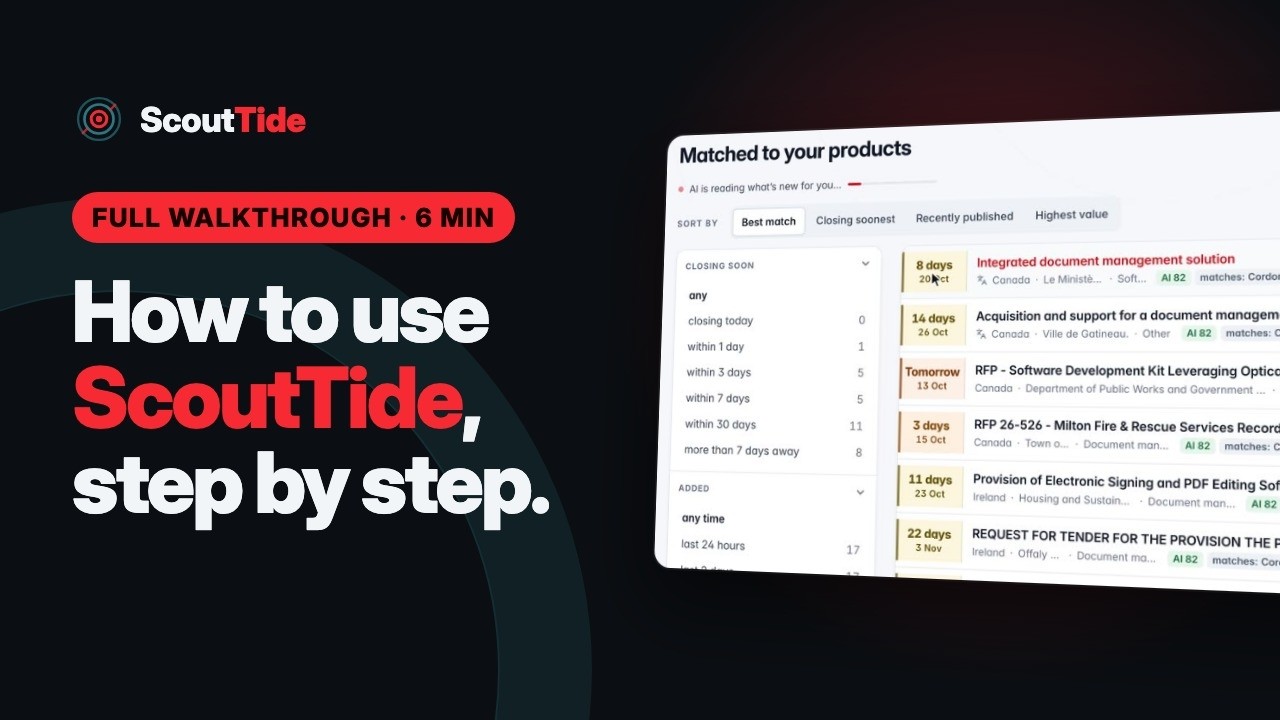
Each product shows how many tenders and social leads it has found. This is your queue: open tenders the AI judged a fit, best match first. Each row shows the deadline, the buyer and country, the value when the notice gives one, and the AI's score. Filter by closing date, product or country on the left. Sort by closing date or value, or search the full text of every notice. To look beyond your matches, use the search bar.
The switch beside it chooses My products, the tenders matched to what you sell, or the Tender universe: every open tender ScoutTide holds, about 250,000 of them. Search titles, buyers and the full notice text. Here, every open tender that mentions records management. Narrow the results with the filters on the left: country, closing date, sector or value. And save any search you want to come back to. It can join your morning digest too.
Open a tender to see why it matched, in plain words, next to its score. The facts sit on the right: the closing date, the stage, and who is working on it. How to apply takes you straight to the bid portal, and documents from the buyer are listed here. A notice in another language is translated for you, with the original kept below. Now work the queue.
Claim a tender and it is yours: it moves to your pipeline, and off your colleagues' list. Not a lead tells the AI this kind of work is wrong for you, so similar tenders stop arriving. Ignore just hides one tender, without teaching anything. Nothing is ever deleted. Everything you or the AI set aside is listed here, with the reason. If the AI got one wrong, Put back returns it to your queue.
Tenders are formal notices from public buyers, with documents and a deadline, and you answer them with a bid. Social leads are posts where the same work is talked about informally, often earlier, and often by private companies that never publish a tender. Each post gets a score, tags, a one-line reason, and the poster's intent: buying, asking, or just talking.
Open one to see why it fits, and when it is worth it, reply where it was posted. They come from feeds ScoutTide watches: Reddit, Hacker News, Stack Exchange, Discourse forums such as Spiceworks, web search that reaches Upwork, LinkedIn and X, and any RSS feed you add. If you bid for public contracts, live in Tenders. If you sell to businesses, or freelance, Social leads will bring you the most. Many teams use both. Missing a buying portal?
Under Feeds, add its RSS feed with a few keywords, and its tenders join your queue. Social feeds work the same way for subreddits, forums and job boards. Claimed tenders live in My pipeline, soonest deadline first. Open one and move it through its stages: watching, bidding, submitted, then won or lost. Notes keep everyone up to date. Team pipeline shows what the whole organisation is working on. That view comes with the Team plan. Inviting colleagues is part of the Team plan. Under Members, enter their email and pick a role. Members claim and work tenders. Managers can also change settings, products, people and billing. Send the invitation. It waits here until it is accepted.
When Tom signs up with the address he was invited at, the invitation is waiting for him. One click on Join, and he is in the CordonData workspace. Back as Maya, a manager can hand any tender to a colleague with Assign. Team activity shows who claimed, moved or noted what, as it happens. Every morning, ScoutTide can email you a digest of new matches and tenders closing soon. You turn it on or off under Account.
Filter the queue the way you like, and save it as a search. Keep it in your digest, and new matches for it reach you each morning. And any list exports to Excel, CSV or PDF. Under Billing you see your plan, the days left in your trial, and what is in use. Nothing is charged until you subscribe, and you can change plan or cancel right here. That's ScoutTide. Start your free 14 day trial at scouttide.com.
Type what you sell and see matching tenders free
Get tenders like these in one morning queue
Tell ScoutTide what you sell. It reads official portals every day and shows your team only the tenders worth a look.